Table of Contents
Desktop keyboard and mouse controls
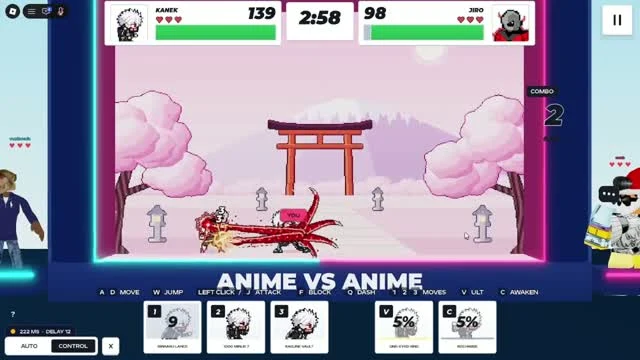
In the October 30 gameplay recording, the desktop hint row shows the following inputs. Confirm the prompts in your own session if they differ, especially after an update or when using a controller.
| Input | Visible action |
|---|---|
| A / D | Move |
| W | Jump |
| Left click / J | Attack |
| F | Block |
| Q | Dash |
| 1 / 2 / 3 | Moves |
| V | Ultimate |
| C | Awaken |
Manual control and Auto Fight
The lower-left area of the recording has AUTO and CONTROL buttons. The official description also confirms the choice between controlling a fighter and setting it to Auto Fight. Choose CONTROL when practising inputs. Choose AUTO when you want to observe automated play, and watch the selected state before assuming manual attacks are active.
- Check which mode is selected.
- Keep the battle area in focus when testing keyboard inputs.
- Try a basic attack before testing a special move.
- Check for cooldown numbers and readiness indicators.
When an input appears to do nothing
First check the control mode, the move card and your current battle state. A cooldown number or an unfilled percentage is useful information before you press the same input again. If the entire game is unresponsive, confirm Roblox has focus and reconnect through the official game page if needed. These troubleshooting checks do not establish a fix for every bug.
Console support is advertised by the developer. This guide does not assign unverified controller buttons or mobile gestures. Use the prompts on that device.
Related Guides
Anime vs Anime Beginner Guide
Start with the correct game, learn your fighter and choose between manual combat and Auto Fight.
Read guide →Anime vs Anime Combat: Cooldowns and Readiness
Use visible move cards and battle feedback to practise a fighter without relying on an unsupported tier list.
Read guide →